
FileChucker
Multi-User File Manager & Uploader with Progress Bar
Contents
About
Live Demo
Features
FAQ
Download
Instructions: UNIX/Linux Servers
Instructions: Windows Servers
UserBase Integration
Performance
Support
Troubleshooting
Changelog
What People Are Saying...
Thank you for your excellent service.-- Dick K.
FileChucker is awesome! I've been looking
for a solution like this for a long time.
-- Nathanael E.
Very good script, continue to upgrade this!
-- Julien T.
I looked all over trying to find a simple cgi script. I found that filechucker was by far the best. If you have issues with your hosting service's PHP.INI max upload size then this is the way to go. Looking forward to future enhancements.
-- Bob C., spindot.com
About
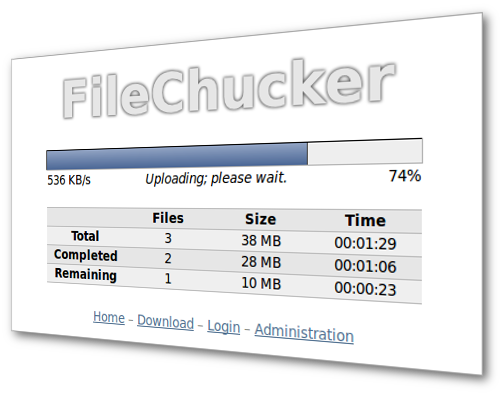
FileChucker is an AJAX-based web application that lets you accept file uploads on your own website. It's simple to install (just 2 files), packed with features, fully configurable, nice looking, and very handy for when you want to share files with anyone. And during uploads FileChucker shows a progress bar & table, so the user knows how much time is left before the upload is complete.
FileChucker can also function as a full-fledged online file manager for your server: it can allow moving/renaming/deleting of uploaded files & folders right in the browser. Of course these features are configurable and password-protectable so you can customize FileChucker however you'd like.
To top it all off, FileChucker works in all major browsers (Moz/FF, IE, Opera, Safari), and runs on virtually any server, with no programming required! It's a single Perl script, and most servers support Perl CGI scripts automatically; for the rare server that doesn't, Perl can usually be easily added. If your site is more of a PHP site, don't worry: FileChucker will run just fine alongside your PHP scripts, and you can even integrate it into your existing framework with a PHP virtual() call, if you want to!
Live Demo
You can try out the FileChucker Live Demo right now.
Features
- Share files that are too large for e-mail by simply uploading them and then sending the link to your friend
- Real-time progress bar and time elapsed/remaining during uploads
- Built-in password protection: two separate passwords allow "admin" and "member" access levels without usernames; or, integrate with UserBase or your site's existing login system
- If you don't want to bother with passwords at all, FileChucker can also be configured to automatically create a private directory for each upload, perfect for single-use uploads; the private directory is optionally re-usable for new uploads by the user who created it
- E-mail notification of new uploads; can be sent to the webmaster and/or to the person performing the upload
- Create, move, rename, and delete files/folders on your server through the browser, functioning as a web-based FTP system or FTP replacement
- Multiple folders/subfolders for uploads, optionally user-creatable
- Can function as a photo gallery script, with automatic image thumbnailing, image rotation, and a grid-layout display of your photo albums and thumbnails
- Supports custom folder permissions so you can specify read-only or read-write access for users/groups on a per-folder basis
- Can automatically rename all uploaded files to remove any "unfriendly" characters, append a time/datestamp, or rename to a completely custom format that you specify
- Logs information about each upload, like uploader's IP address, hostname, browser & operating system
- You can configure unlimited custom form fields anywhere on the upload form, so your users can enter comments or information about the file(s) they're uploading; supports text fields, radio buttons, checkboxes, drop-down lists
- Can integrate with your site's login framework to store each user's uploads in his own directory automatically, and after an upload, can redirect to a page that you specify
- Restrict what kinds of files can be uploaded and/or displayed based on file extension
- Has a built-in human test to prevent spambot abuse (sometimes called a CAPTCHA system; "CAPTCHA" is (TM) by Carnegie Mellon University)
- Works on a standard server or a secure server (https://)
- Supports i18n and l10n (internationalization and localization) in most areas of the application, so it can be translated into other languages by simply modifying the settings containing the text strings
- Adjustable max upload size (in bytes), up to as large as your server can support (typically multiple gigabytes)
- Adjustable user quotas
- Can upload one or multiple files, up to whatever limit you specify
- Fully customizable via preferences that you can adjust
- Check out the preferences file to see all the adjustable features and documentation.
Download
You can download the FileChucker trial version and install it on your site right now. The trial is designed for you to test on your server before purchasing the full version. The trial is almost identical to the full version with the following exceptions:
- after accepting an upload, it saves the file as an empty document (size 0 bytes) and automatically adds a serial number to the end of the filename.
- only the progress bar itself is shown; progress table, elapsed/remaining time, upload speed, etc, are not shown
- deleting files/folders has been disabled
- creating new folders with the file-manager has been disabled
Prior to version 2.0, FileChucker was free for personal use, but as more and more people use it and request support & new features, it requires more and more of our development time and effort. So we now charge a small fee for use on personal sites.
Purchase
To get the full version of FileChucker, please choose your license type below.
FileChucker Full Version: |
||
|---|---|---|
Personal Website License: 1-site |
$19.99 |
|
Non-Personal Website License: 1-site |
$39.99 |
|
Non-Personal Website License: 3-site |
$89.99 |
|
Non-Personal Website License: 10-site |
$249.99 |
|
Instant credit card payments through PayPal. No sign-up required! |
||
Note: a Non-Personal Site is one that is commercial, academic, organizational, community, government, etc.
Instructions: UNIX/Linux Servers
Note I: Do not edit the filechucker.cgi script unless absolutely necessary; instead, edit filechucker_prefs.cgi for all your customizations.
Note II: if you are using Windows on your own computer (not necessarily your server), and when you open the *.cgi file, the lines all appear to be crunched together, then try opening it in Wordpad (not Word) instead of other editors like Notepad.
On your website:
- Put the script at /cgi-bin/filechucker.cgi. (You could also name it filechucker.pl, or in fact, whatever.cgi or whatever.pl.) And put the prefs file at /cgi-bin/filechucker_prefs.cgi.
- Set the permissions on filechucker.cgi (aka, chmod it) to world-readable and world-executable, that is, a+rx or mode 0755. Do NOT use 0777.
- Create the directory /cgi-bin/fcdata/ and set the permissions on it to world-readable, -writable, and -executable, that is, a+rwx or mode 0777.
-
Create the directory /upload/files/ and set the permissions
on it to world-readable, -writable, and -executable, that is, a+rwx or mode 0777.
Now visit yoursite.com/cgi-bin/filechucker.cgi in your browser and FileChucker should be working properly. If not, don't try any of the following optional steps; go back and fix whatever's necessary to get the script working first. - (Optional; recommended)
If you'd like to use yoursite.com/upload/
instead of yoursite.com/cgi-bin/filechucker.cgi to access
the script, then you can use one of these methods:
SSI/shtml (most servers support this):Create /upload/index.shtml and put this line in it:
<!--#include virtual="/cgi-bin/filechucker.cgi?$QUERY_STRING" -->
You may also have to put these lines into your .htaccess file:
DirectoryIndex index.shtml index.php index.html index.htm
Options +Includes
AddType text/html .shtml
AddOutputFilter INCLUDES .shtml
Then set $PREF{here} = "/upload/"; in your filechucker_prefs.cgi file, and put the following line in your /upload/.htaccess file:Header set Connection close
PHP:Create /upload/index.php and then use one of these methods:
Method A: copy and paste this line to the /upload/index.php file:
<?PHP virtual("/cgi-bin/filechucker.cgi"); ?>
Or:
<?PHP virtual("/cgi-bin/filechucker.cgi?" . $_SERVER['QUERY_STRING']); ?>
Method B: save this file as call_filechucker.php in your website's document-root (its top level), and then add this line to the /upload/index.php file:
<?PHP require($_SERVER['DOCUMENT_ROOT'] . "/call_filechucker.php"); ?>
Then set $PREF{here} = "/upload/"; in your filechucker_prefs.cgi file, and put the following line in your /upload/.htaccess file:Header set Connection close
META Refresh:Create /upload/index.html and put this into it:
<html><head><meta http-equiv="refresh" content="0;url=http://www.yoursite.com/cgi-bin/filechucker.cgi" /> </head><body></body></html>
Note that this just redirects your visitors from /upload to /cgi-bin/filechucker.cgi, so while it's better than nothing, the SSI or PHP methods above are better if your server supports them. - (Optional; recommended) If your server is running Apache (most likely it is), then inside your /upload/ directory create a text file named .htaccess (notice the period at the start of the filename). In that file put the single line "Options -Indexes" without the quotes. This will prevent people from getting at the raw directory listings in your upload directory, bypassing FileChucker altogether. Of course, if for some reason you want people to be able to see the raw listings, then skip this step.
-
(Optional; recommended) FileChucker is not written in PHP, but many servers
do run PHP, and they will usually execute PHP code in any
directory, including your upload directory. This means that someone
could upload arbitrary PHP code (like a PHPShell script) and do bad things
to the files on your server. So if your server runs PHP, you will
probably want to disable it for your upload directory. One simple way
would be to add the following lines to your /upload/files/.htaccess file:
RewriteEngine on
RewriteCond %{REQUEST_URI} \.php [NC]
RewriteRule .* / [L,R] - (Optional; recommended) Download filechucker-images.zip and unzip it to the /upload/ directory on your server (contains file/folder icons, logos, rounded corners, etc). Do not create a subfolder within the /upload/ folder; for example, don't put the images at /upload/filechucker-images/ but instead put them directly in the /upload/ folder.
- (Optional; recommended) Read the FAQ.
Now the script is ready to run, and you can access it by going to yoursite.com/cgi-bin/filechucker.cgi or yoursite.com/upload/ if you enabled that option.
FileChucker works "out of the box" on most servers, but one problem that appears on a small handful of servers is that the progress bar doesn't move even though uploads complete just fine. The solutions on the troubleshooting page will fix the problem if this happens to you.
Instructions: Windows Servers
Note I: Do not edit the filechucker.cgi script unless absolutely necessary; instead, edit filechucker_prefs.cgi for all your customizations.
Note II: if you are using Windows on your own computer (not necessarily your server), and when you open the *.cgi file, the lines all appear to be crunched together, then try opening it in Wordpad (not Word) instead of other editors like Notepad.
On your website:
- Install ActivePerl if your server doesn't already have Perl installed. You don't need ActivePerl Studio or Enterprise or any of that stuff, just the regular, free ActivePerl distribution. Be sure to check all the boxes at the end of the installation about enabling the various options.
- Run the inetmgr command and change the CGI web service extension from "prohibited" to "allowed".
- Open My Computer or Windows Explorer, and go to your website's document-root; this is usually c:\inetpub\wwwroot. Within there, create a new folder named "upload" and put filechucker.pl and filechucker_prefs.pl into it. (Rename those files from *.cgi to *.pl if necessary.) Create 2 subfolders within the "upload" folder: one named "fcdata" and the other named "files".
- For the "fcdata" and "files" folders, do the following: right-click on the folder, choose Properties, and go to the Security tab. Find or add the IUSR_computername account, and give it "Full Control".
- Open filechucker.pl in a text editor and change the first line from #!/usr/bin/perl to either #!perl or #!c:\path\to\perl.exe
- Create the c:\temp\ folder if it does not exist; if this isn't possible, then set $PREF{disable_upload_hook} = 'yes' in filechucker_prefs.cgi.
-
Open your web browser and go to yoursite.com/upload/filechucker.pl. It
should execute successfully and you should see the upload form.
If not, then run the inetmgr command and right-click on the website and choose Properties. Go to the "Home Directory" tab, then to "Application Settings", and set "Execute permissions" to "Scripts and Executables".
If it still doesn't work, you may need to go to "Application Settings" then "Configuration", and add an application extension for .cgi with the executable set to: C:\Perl\bin\perl.exe "%s" %s
Then do the same thing for the .pl extension. - (Optional; recommended) Run the inetmgr command and create a new virtual directory within your website and name it "upload". For the virtual directory's source, choose the "upload" folder where you put the CGI/PL scripts. Once the virtual directory is created, get its Properties, go to the "Documents" tab, then to "Enable default content page". Add filechucker.pl to the top of the list. You should now be able to use the shortcut URL yoursite.com/upload/ without having to include the filechucker.pl on the end. Or, if you want to call FileChucker from within a PHP page, see step #5 in the UNIX instructions.
-
(Optional; recommended) FileChucker's image features (thumbnails, rotation)
require an image-processing library like GD or ImageMagick. To
install the GD Perl module, open a command prompt and run the command
ppm install http://theoryx5.uwinnipeg.ca/ppms/GD.ppd
To install ImageMagick, go to www.imagemagick.org and download & install the binary release for Windows. Then read this FAQ item for instructions on setting $PREF{convert_command}. - (Optional; recommended) To increase IIS's CGI timeout, run the inetmgr command, right-click "local computer", choose Properties, then check "Enable Direct Metabase Edit". Then edit the file c:\windows\system32\inetsrv\metabase.xml in a text editor (you may need to use Notepad, not Wordpad). Find the setting CGITimeout="300" and change it to 5000.
- (Optional; recommended) You may want to disable directory-listing for your /upload/ directory; you can do this through inetmgr.
- (Optional; recommended) If your server runs PHP, then you should disable it for your /upload/files/ directory, so that visitors can't upload PHP applications and modify the files on your server.
- (Optional; recommended) Download filechucker-images.zip and unzip it to the /upload/ directory on your server (contains file/folder icons, logos, rounded corners, etc). Do not create a subfolder within the /upload/ folder; for example, don't put the images at /upload/filechucker-images/ but instead put them directly in the /upload/ folder.
- (Optional; recommended) Read the FAQ.
- (Optional) If you plan to use any of FileChucker's extra features which require a database, and you don't have a database system installed on your server, then you'll need to install MySQL, which is free. But note that by default, FileChucker does not require a database.
- (Optional) If you want to use email notifications, then open a command prompt and run ppm install MIME::Lite to install the MIME::Lite Perl module. And if you want to use any of the database features, then run ppm install DBD::MySQL as well. The ppm command is part of ActivePerl, so if you've just installed ActivePerl, you may need to close and re-open your command prompt and/or reboot your server so that the ppm command is in your PATH.
Now the script is ready to run, and you can access it by going to yoursite.com/upload/filechucker.pl or just yoursite.com/upload/ if you enabled that option.
Integrating With UserBase
FileChucker has simple built-in password protection: it allows you to create 2 passwords for "member" and "admin" level access, without using any usernames. But if you want a full-featured login system instead, with unlimited usernames and a separate password for each one, then you'll probably want to use our UserBase application. You can check out the UserBase-enabled FileChucker Live Demo.
To integrate FileChucker with UserBase, just set this PREF in FileChucker:
$PREF{integrate_with_userbase} = 'yes';
Then you'll also want to set some of the access control PREFs like groups_allowed_to_upload, groups_allowed_to_list_files, etc. And if you want each member's files to automatically go into his own uploads subdirectory, then you'll also want to set:
$PREF{enable_userdirs} = 'yes';
Finally, note that if your site already has a login system, you can still have your users' uploads automatically go into their own directory by enabling enable_userdir_from_cookie and setting userdir_cookie_name to whatever name your login system uses for its username cookie. (Of course, be sure to set integrate_with_userbase to no if you're not using UserBase.)
Performance
First, it should be noted that FileChucker itself imposes no limits on the amount of data that can be transferred (except whatever limit you specify in your setting for $PREF{sizelimit}). FileChucker also does not place any limit on the speed of an upload. If you are having trouble with uploading large files, or with uploads going really slow, the problem is in your network, or somewhere else in your server's hardware or software configuration. Many FileChucker users on many platforms (Windows, Linux, IIS, Apache, OS X Server) are uploading files sized in the hundreds of megabytes, so the problem is not within FileChucker.
In a test upload of a 700MB file across a 100mbit LAN, the transfer
ran at about 5MB/sec, requiring about 2.5 minutes to complete.
After the actual data-transfer was complete, the server spent ~50 seconds
processing the file (CGI.pm's internal processing) before the script
finished running. (FileChucker now has the ability to avoid this
extra processing time altogether, as long as your server is running
a relatively recent Perl distribution.) The server was a Dell Dimension 1100 desktop
system, with an Intel Celeron 2.53GHz CPU (256 KB cache, 5061.56 bogomips),
512MB RAM, 1GB swap, and a standard 7200RPM ATA IDE disk. The
server was running Apache 2.0.54 with a fairly standard installation.
During the upload, the server's RAM and swap usage did not increase
significantly (probably a few KB or a few tens of KB), because the uploaded file
got streamed to disk (to a temporary file) by CGI.pm. This is
why the server needed to spend ~50 seconds processing the file after
the upload was complete: it was decoding the raw POST data from the temporary
file into the actual final destination file. (Again, FileChucker
no longer needs to do this.)
In a second test upload on the same server as above, a 1.4 gigabyte file took about 5 minutes to upload, and when the data finished transferring, the server spent just under 2 minutes doing POST-processing before the script finished.
The one thing we've seen that's helped to increase performance during file-uploads (aside from faster hardware and/or a faster network link) is to make sure the server has a recent version of the CGI.pm Perl module. In FileChucker, if you enable the debugging PREFs, then visit your server's FileChucker installation in your browser and pass ?debug on the end of the URL, then view the page's source-code, at the bottom you'll see a bunch of debugging information inside of an HTML comment. One of the items near the top of this info is the CGI version that your server is running. The current version is somewhere around 3.20 or greater; if you're in the 2.xx series, or even the low 3.0x series, then upgrading your Perl installation (which will upgrade your CGI.pm module) may give you better performance during uploads.
If you want to upload files larger than 2 gigabytes, then you can't use Apache 1.3.x or 2.0.x. You need to use Apache 2.2.x, as explained on the "New Features in Apache 2.2" page:
Large File Support
httpd is now built with support for files larger than 2GB on modern 32-bit Unix systems. Support for handling >2GB request bodies has also been added.
Support
If you need any help with FileChucker, please complete the following steps in order:
- Make sure you've followed the Installation Instructions.
- Make sure you've completed the steps in the Troubleshooting section.
- Contact us and in your message, make sure to include the URL to FileChucker on your server, with the debugging PREFs enabled.
Troubleshooting
If you can't get the script to work on your server, the first thing to do is open it in a text editor, go to the top (the PREF section) and set both $PREF{enable_debug} and $PREF{show_errors_in_browser} to 'yes'. Then go to yoursite.com/upload/?debug (i.e. visit the script and pass ?debug on the end). When the page loads, use your browser's View-Source feature and scroll to the very bottom. Here you'll see some debugging information that may help you.
If you're getting an Internal Server Error, you can probably solve it by using the information on our Internal Server Error page.
If you're getting errors about missing Perl modules, then our page on installing Perl modules will help.
The next step is to try some of the FileChucker-specific solutions on the troubleshooting page.
If it still doesn't work, then set $PREF{disable_upload_hook} to 'no', set $PREF{delete_logfiles_immediately} to 'no', and then contact us for help. Be sure to keep the debugging preferences enabled, and send us the URL to the script on your server.
ChangeLog
v4.01 (20070630) (internal):
- FileChucker can now read usernames from PHP sessions.
- Custom form fields can now be made read-only.
- There is now an option to generate email message IDs internally, for strange cases where the mail server for some reason fails to generate them.
- Refactored some code for the passing of progress bar (and progress table) status information from the CGI script on the server to the Javascript on the client, in order to make it easier to hack the code to pass custom/extra information to the browser via AJAX.
- Bugfix: when using the new feature where the progress bar is displayed in a pop-up window (i.e. in Safari), we failed to properly relay the AJAX "upload too big" message, so the whole upload would still take place and then the server would tell you it was too big.
v4.00 (20070625) (internal):
- Bugfix: the serial_is_userdir feature only worked for the first upload for a given serial number; reusing a serial number (i.e. reusing an upload folder) didn't work.
v3.99 (20070624) (internal):
- Bugfix: a recent update broke FileChucker's upload-is-too-big error logic, so uploads that exceed the site's sizelimit setting were just timing out instead of saying "sorry, upload too big."
v3.98 (20070618) (internal):
- We now automatically periodically delete any leftover *.rawpost files in the fcdata directory (only applies to servers running outdated versions of Perl).
- Made some changes to support servers whose DOCUMENT_ROOT is a UNC path (one beginning with \\ or //).
v3.97 (20070618) (internal):
- Renamed the ?makePasswordHash argument to ?newpw (though the old one is still supported).
- We now display an error if the human-test image directory does not exist and the human-test is enabled.
- We now assume that if userdirs are enabled and the current user has one, then at least one writable directory exists for this user. This is to save a call to get_all_writable_directories(), which can take a lot of time on servers with lots of folders in their upload area.
- Bugfix: all template variables are now of the form %%var%% instead of %var% as before, because %foo% is ambiguous within a template that may also contain a URL with hex-encoded portions.
v3.96 (20070614) (internal):
- New "Download" link on the options menu for each file in the file list, which "forces" the browser to display a "Save File" dialog for the file instead of trying to use a plugin to render it.
- The update-timestamp-on-download feature is finally fixed/finished.
v3.95 (20070614) (internal):
- New option to allow multiple levels when creating a new subfolder (i.e. multiple levels in that folder's name; we've always allowed multiple sublevels overall, but you had to create them one at a time).
- New option to specify a max image filesize for which we'll attempt to create a thumbnail, so that on sites with huge images, we'll skip them instead of hanging and/or producing an empty thumbnail file.
- On the file list, we no longer exit with an error if a folder isn't writable. That generally is an error, but when just displaying the files, it really isn't.
v3.94 (20070613) (internal):
- FileChucker can now optionally display the progress bar in a pop-up window instead of within the original page.
- FileChucker's progress bar now works more reliably on Safari. Previously it would sometimes work fine but intermittently the progress bar would fail to move; FileChucker now always displays the progress bar in a separate pop-up window for Safari users, which seems to make it function properly all the time. I guess we'll find out come June 29th when there are scores of new iPhone-wielding Safari users...
- Miscellaneous CSS adjustments, including a new per-page class attribute on the outermost container so different pages can be styled differently more easily.
v3.93 (20070611) (internal):
- FileChucker can now read PHP session data to get an existing username for password-protection, userdirs, etc.
- New preference for specifying custom Javascript code to be executed right when an upload completes.
- New option to automatically reconnect to a database after an upload completes in case of lost connection (only necessary for a tiny percentage of web hosts who constantly lose database connections, like GoDaddy).
- A single copy of FileChucker can now run in multiple modes with different settings by passing URL options to specify different prefs files to be used.
- For upload sessions where no files are included, but other form-field data is, we can now pass the form-field data on the URL to another page upon completion.
- Bugfix: a previous update broke the pass-formfield-values-on-redirect functionality.
v3.92 (20070526) (internal):
- Made the various error pages more consistent, and template-based.
- Disabled the $PREF{urls_allowed_to_post_to_us*} settings by default, because a small number of people reported false positives with it.
- New option to control whether we serialize new subfolder names if a folder by the same name already exists (previously we always did and there was no option to disable that behavior).
- New option to specify custom Javascript code that will be executed when the upload form is submitted (in addition to the existing custom JS code option, which does not get executed onsubmit).
- New subfolders created during uploads (whether manually by the user, or via $PREF{automatic_new_subdir_name}) can now include multiple folder levels.
- Bugfix: the auto-redirection to the login page that was implemented in the previous update caused problems when not integrated with UserBase, so we now test for that and don't auto-redirect unless integrated with UserBase.
- Bugfix: a line in our JS code failed to work in Opera, resulting in it being impossible to upload. This appears to be due to a bug in Opera's regex processing within Javascript, but we've now implemented a workaround that does the same thing in a different way, and works on all browsers.
v3.91 (20070517) (internal):
- You can now add custom columns to the file list to display information about the uploaded files (the same information that was previously [and still is] available on the options > info link).
- Now the "You must log in" screen automatically redirects the user to the login page.
- You can now specify notification email recipient addresses on a per-folder basis.
- We now hide/ignore Frontpage's stupid _vti_cnf folders by default.
- Our newline-replacement string (used in the info files) is no longer optionally space-padded, in order to simplify processing and make it more deterministic. This may affect sites that have existing info files which store fields that can contain newlines; the result would simply be extra spaces in the field's value.
- Bugfix: a recent update made perfile formfields fail to have their values saved for files other than the first one in multi-file uploads.
- Bugfix: when using the store-info-to-database option, the new counternum field was created as NOT NULL which caused a problem on some versions of MySQL.
- Bugfix: the "Add another file?" link is now hidden when in reprocessing mode.
- Bugfix: a recent update broke the serial_is_userdir feature in some cases, because the serial number is now generated client-side just before each upload begins; so we now use this new serial number in creating the userdir instead of the one hard-coded into the subdir field.
- Bugfix: the reprocessing feature was not being processed by the Javascript code for the Actions Menu.
v3.90 (20070502) (internal):
- New $PREF{enable_upload_counter_number} option to give each upload a unique number that can be used as a serial number, order number, confirmation number, etc.
- Changed the file info page (FileList > options > info) so it is now entirely template-based. This required changing the format of our info files in a way that breaks compatibility with any existing info files created by previous versions of FileChucker. So if you have existing info files that you need to keep accessible, then you'll probably want to set $PREF{store_upload_info_in_files__oldformat} = 'yes'.
v3.89 (20070425) (internal):
- The user can now add more file-fields to the upload form by just clicking on a link that updates the page instantly, instead of having to hit an "Apply" button which reloads the page from the server as before.
v3.88 (20070424) (internal):
- The Javascript that controls the progress bar and table now includes a check for a rare problem on some (probably broken) servers which prevents the server from knowing the total upload size.
- Added some more sanity checking and bounds-checking for the progress percentage on the upload form.
v3.87 (20070413) (internal):
- New option to allow form submissions that don't include files, in case you want to collect other data (text input) in a submission that may or may not include file uploads.
- The upload progress bar now slides smoothly from one value to the next instead of jumping.
- The pop-up menu on the per-file "options" link has been changed: it no longer includes a "Close Menu" link -- instead clicking somewhere else automatically closes it (as is ~standard for such menus); it now has a minimum width so it never displays absurdly tinyly; it now displays "(none)" when there are no applicable options for a given file/folder.
- Bugfix: if disabling the $PREF{show_progress_table_during_uploads} option, so that just the progress bar is shown (but no textual data), the upload failed to start.
v3.86 (20070407) (internal):
- Bugfix: one of the recent Javascript updates caused an incompatibility with certain versions of Firefox on Windows; fixed now.
v3.85 (20070406) (internal):
- You can now specify different icons for files in the file-list based on their MIME types (determined by their file extensions).
- Bugfix: the "Home" link in the footer was displayed as an invisible link if the $PREF{home_link_name} was set to null; now it's not displayed at all in that case.
- There is now an "all permissions" page to show all the folder permissions that have been assigned to all users and groups (in addition to the original permissions page which shows the permissions for each folder on its own permissions page).
v3.84 (20070402) (internal):
- Added new "human test" feature, where the user has to enter a code displayed on the page to prove that he is a human and not a spambot (or other nastybot). This feature also includes an invisible mode where the user doesn't even actually have to type anything or even see the extra field at all, and it should still block spambots.
v3.83 (20070331) (internal):
- FileChucker can now generate the upload serial number (synchronization token) on the client-side via Javascript at the start of each upload, which can be useful in some situations where the upload form must come from a static file.
v3.82 (20070329) (internal):
- FileChucker's upload form can now get a new upload serial number from the server at the start of the upload, instead of when the form itself is first generated. This can facilitate the separation of the front-end from the back-end (for example to host the form and the CGI script on two different servers).
v3.81 (20070328) (internal):
- Added an option to automatically transfer the uploaded files to a second server via FTP at the end of an upload.
v3.80 (20070327) (internal):
- Bugfix: when using custom_folder_permissions together with integrate_with_userbase, users in the public group were sometimes treated as users in the members group.